
Developer Support
Advocacy and Innovation
Latest posts
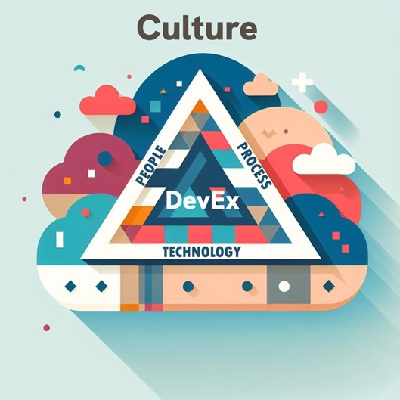
Comment l’IA générative impacte-t-elle l’expérience développeur?

Adlene Sifi explore l'impact de l'IA générative sur l'expérience des développeurs. Dans cet article, nous allons tenter de déterminer s’il existe un lien entre l’utilisation de l’IA générative (ex. : GitHub Copilot) et l’expérience développeur (DevEx). Nous souhaitons vérifier plus précisément si l’utilisation de l’IA générative a un impact positif sur l’expérience développeur. Nous tenterons même de vérifier s’il existe un lien de causalité entre l’utilisation de l’IA générative et l’amélioration de l’expérience développeur. Nous allons dans un premier temps commencer par définir ces deux concepts. ...
How does generative AI impact Developer Experience?
Adlene Sifi explores the impact of generative AI on developer experience. In this article, we will try to determine if there is a link between the use of generative AI (e.g., GitHub Copilot) and developer experience (DevEx). Specifically, we aim to verify whether the use of generative AI has a positive impact on developer experience. We will even try to see if there is a causal link between the use of generative AI and the improvement of developer experience. First, let's define these two concepts. What is developer experience? Is it a new buzzword? A market trend? Worse, is it a new marketing tactic...

Supercharge Developer Workflows with GitHub Copilot Workspace Extensions

David Minkovski takes you on a hands-on journey to extend GitHub Copilot beyond just being a code assistant — turning it into a true AI-powered teammate inside VS Code. Motivation It is 2025 and Software Developers are faced with an incredibly fast-paced high-tech landscape — full of innovation and automation around every corner. Even with the consideration of AI taking on many roles (and hopefully not our jobs just yet) we are constantly challenged with rising complexities of distributed systems, cloud-native architectures and cognitive loads as well as context switching and endless interruptions. I c...

AI-Powered Customer Support: The Ultimate Multi-Agent System
David Minkovski explores using Azure OpenAI and Rust to Build Intelligent and Scalable AI Systems Motivation For the past few months, I’ve had the pleasure of taking the front seat to some really fascinating and exciting AI projects, thanks to my amazing customers and colleagues at Microsoft. During these sessions, I noticed a common challenge: How do I use ChatGPT while keeping control? So, I thought to myself, why not write a little article to help? Let’s break it down and create a super simple “multi-agent” system. This system will handle everything from the initial customer support request to e...

Deploying WebJobs to Azure Container Apps
Debjyoti Ganguly walks through the process of migrating existing WebJobs to Azure Container App Jobs, highlighting the benefits and providing practical steps to implement this migration effectively Introduction As businesses scale, the need for a robust and scalable environment for running background jobs becomes essential. Azure Container App Jobs offer a modern, scalable, and containerized solution for running background jobs, providing significant benefits over traditional Azure WebJobs. This guide will walk you through the process of migrating existing WebJobs to Azure Container App Jobs, highlighting...
AI: The New Frontier for Developers
AJ Enns reflects on his journey as a new developer and the impact of AI as an integrated, coding assistant for improving developer velocity. The year is 2024, and AI has been around for a while. ChatGPT broke onto the scene and changed the world forever. As soon as I heard about it, the first thing I did was try to learn Blazor with the help of AI. Within 3 weeks, I had a working example in a language I did not know before, as a result I was hooked. How do I share my recent learnings and amazement? Working as a Developer Advocate, I quickly learned that both the Developer and the Business were not early ad...

Debugging a managed identity connection to Azure SQL in Azure App Service using containers
Dominique St-Amand explores how to debug a managed identity connection from a container-based App Service to Azure SQL. So you’ve been eager to deploy your containerized web application that you’ve been working on for a while, to Azure App Service. You follow the best security practices which means you’ve setup your connection to your Azure SQL database using a managed identity. Upon loading your application, you get a dreadful exception that you can’t connect to the database. You then wonder, is this a database permission problem or some another problem, such as the application cannot connect to the datab...

Autogen RAG
Linkai Yu explores the retrieval-augemented generation pattern with Azure OpenAI Assistants API. The Retrieval-Augmented Generation (RAG) pattern is the standard for integrating ground AI with local data. One powerful way to implement RAG is through the function call or tool call feature in the Function Call API. When examining the samples provided by the Azure OpenAI Assistant API Function Call, Completion API Function Call, or Autogen Function Call, they all require the function metadata to be specified in the code. Imagine you have hundreds of data I/O functions, ranging from SQL queries to microservice...
Boosting Azure DevOps Security with GHAS Code Scanning
Debjyoti Ganguly shares insights on the security benefits and configuration of GHAS Code Scanning with Azure DevOps. Boosting Azure DevOps Security with GHAS Code Scanning Code scanning, a pipeline-based tool available in GitHub Advanced Security, is designed to detect code vulnerabilities and bugs within the source code of ADO (Azure DevOps) repositories. Utilizing CodeQL as a static analysis tool, it performs query analysis and variant analysis. When vulnerabilities are found, it generates security alerts. CodeQL CodeQL is a powerful static analysis tool used for showing vulnerabilities and bugs in so...