We had in the last days a couple of reports of Visual Studio’s background flickering on old LCD monitors because of the texture and the colors used by default by the shell.
So far we have not been able to reproduce in-house the problem (and I suspect this is caused by either old video card drivers or monitors not supporting properly the vertical refresh rate). In any case, there are a coupe of options for fixing the problem I wanted to make you aware of:
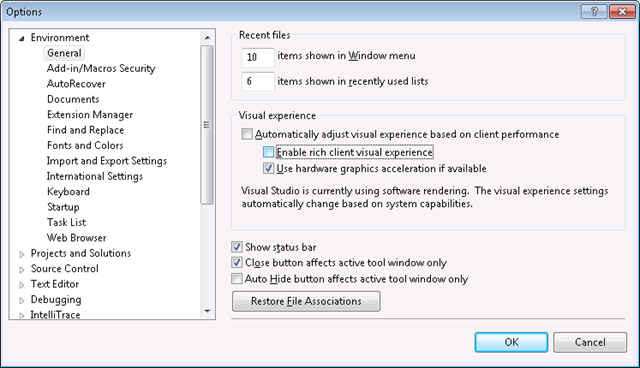
1) The simplest way (and currently the only option if you’re still running Beta2 and don’t want to upgrade just yet), you can use an existent option in the product:
a) Open Tools/Options dialog b) In the options tree select the Environment/General page. c) Uncheck "Automatically adjust visual experience based on client performance" then uncheck "Enable rich client visual experience" checkboxes. d) Close the Tools/Options dialog Note: this will disable color gradients and texture on shell's background, but will also disable other nice graphics in the products (e.g. gradients in menus and toolbox, animations, etc)
a) Open Tools/Options dialog b) In the options tree select the Environment/General page. c) Uncheck "Automatically adjust visual experience based on client performance" then uncheck "Enable rich client visual experience" checkboxes. d) Close the Tools/Options dialog
Note: this will disable color gradients and texture on shell's background, but will also disable other nice graphics in the products (e.g. gradients in menus and toolbox, animations, etc)
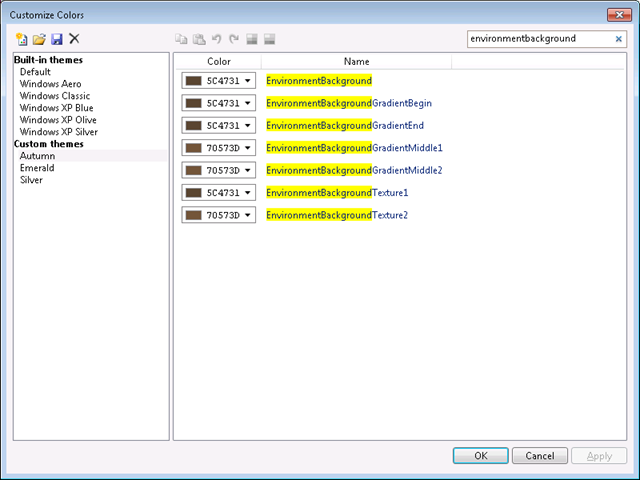
2) If you’re just interested in getting rid of the texture or changing the colors, you can use Visual Studio Color Theme Editor extension.
a) Use Tools/ExtensionManager and search the online galery for "Color Theme Editor". Download and install it. b) Click RestartNow button to restart the shell and load the extension c) You should now have a new Theme menu. Open Theme/Customize Colors d) Click NewTheme button (first in the dialog's toolbar) and create a copy of the Default's theme e) In the search combo in the dialog, search for "environmentbackground". In VS2010 RC build there should be 7 lines displayed f) Select first line, click CopySelectedColor button in dialog's toolbar g) Use Shift or Control to select all 7 lines in the list. Click PasteColors button in the dialog's toolbar. h) Click Apply and OK buttons to switch to the new theme Following the above steps the background will use a solid color, while the visual effects will be preserved anywhere else in the shell.
3) Ultimately, if you want more control of the background texture, you can use Visual Studio Background Customizer extension. You can download and install it using Tools/ExtensionManager, then after IDE restart you should have a new menu options Tools/Customize Background. It invokes a dialog that should allow you to use a solid color as background, use a transparent texture (keeps the gradients), use an image as the background or define a texture to your liking that doesn’t have flicker problems on your monitor.
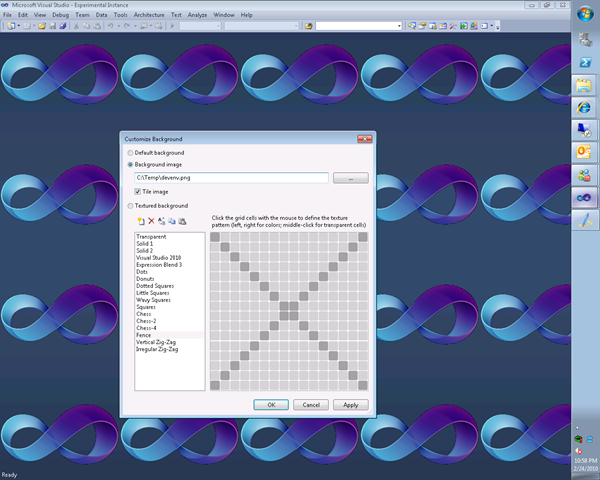
If you prefer editing the texture with a text editor rather than clicking the cells, you can modify the %LOCALAPPDATA%\Microsoft\VisualStudio\10.0\BackgroundTheme.xml file (just make sure the xml format is still valid, otherwise the shell will regenerate and save the file with default settings next time you’ll close with OK the Background Customize dialog).

Alin Constantin – Developer, Visual Studio Platform Team Short Bio: Alin has been at Microsoft for 10 years working on SourceSafe and source control integration in Visual Studio. For Visual Studio 2010, Alin helped writing the code that enabled Visual Studio to move from Windows 32 user interface to a modern UI based on Windows Presentation Framework, worked on localization, About Box dialog improvements, toolbars/menus Customization dialog, etc.
The flickering is not caused by video drivers or refresh rate, but because of older/cheaper lcd panels that only display 15 bits of colors. Therefore, they need to switch between two colors rapidly to display an in-between color.
Because you use a grid pattern to display the background, this results in the flickering which is normally not visible. The same effect can be seen on older notebooks with Win95/98/XP where the display is shaded with a grid pattern before you shutdown.
Great info! Thanks.
Do you know if there are any options/extensions for getting the editor to display text in the same way as in VS2008? The text in VS2010 looks 'fuzzy' and is generally not as readable as in VS2008.
I have tried tweaking the ClearType settings in Windows and found that to get the text to look like VS2008, you have to turn ClearType all the way up. Unfortunately, that makes all other text in Windows look bold...
Thanks,
Ole
I see the flickering on my Hyundai W240D too. Although not on my Hyundai W240D V2. If you could modify the defaults so that it's not one of those in-between colours mentioned by oVan, I'm sure those of us that see the problem would be very appreciative.
Great. I haven't encountered flickering, but I like this option to keep UI simple, I don't need the fancy gradients or animations.
I would like an option to enable the rich client experience EXCEPT for animations.
The current color scheme of Visual Studio 2010 is despised by everyone I know or with whom I'm acquainted. Is there a way you could involve some graphic designers to design a very pleasant color scheme and provide that as an option.
>The current color scheme of Visual Studio 2010 is despised by everyone I know or with whom I'm acquainted. Is there a way you could involve some graphic designers to design a very pleasant color scheme and provide that as an option.
The current color scheme was designed by a graphic designer. Color schemes are very subjective, we have received lots of feedback both ways (love it / hate it). There is a tool available for creating new color schemes which is linked in the article, it comes with a number of pre-made color schemes so you don't have to make your own if you can find one of your liking in its pre-made schemes.
Ryan
There is also a quite annoying effect, that when you move your mouse over the "outline" (line on the left, next to the linenumbers, grouping functions), the current function gets highlited in gray.
If you move your mouse fast out of the studio, you just see a flickering. Which always makes me wonder "what happened now?! - Oh, just the highliting)
Would it be possible to make it fadeIn/Out slower, so that this dont happen on fast move-overs?
TIA
Daniel
I am using an HP w2408h monitor with a geforce 9600 GT video card and am experiencing this issue. Is this considered "old" hardware? I appreciate the notes on how to fix - which work fine - but I think you guys need to do more homework on the issue - something is being missed.
@Daniel:
When we conducted usability testing on the outlining UI, including this highlight, we found that there is an interesting tradeoff between responsiveness and flicker. If the outlining margin responds immediately to any mouseover, there is too much flicker when you're trying to move the mouse from (for example) the editor to the toolbox or vice versa. If outlining uses a slower transition to the highlight, it's perceived as less responsive and sometimes slow. Based on data from the usability testing, designs from our UX team, and decisions from the VS Editor product team, we thought we'd found a good balance with the current highlight behavior.
We don't currently plan to update this highlight behavior, but there are a few other ways to customize it. If you use a custom color scheme and the highlight is too bright, it might help to change its color to something subtler in Tools->Options->Environment->Fonts and Colors->Collabsible Region. If you'd prefer to turn off the highlight altogether, setting the background color for Collapsible Region to your editor background should eliminate it (and the flickering). You could also go to Tools->Options->Environment->General and uncheck "Enable rich client visual experience" to turn off the highlight, though that will change the appearance of a number of UI elements in Visual Studio.
All of that said, there are already a couple of customer-reported Connect bugs about this in our database. They (and consequently this issue) will be revisited for a future version of Visual Studio; although we don't have specific plans to add a longer delay for this highlight, we may reconsider it in the future. Thanks for using Visual Studio 2010 and posting your feedback!
Brittany Behrens
Program Manager, VS Platform - Editor
+1 for an option to turn the flickering off