
Quick Access Extension

With last week’s release of the Productivity Power Tools, we announced a new extension – Quick Access – that allows you to search and execute common tasks within the Visual Studio IDE. You can launch Quick Access by pressing Ctrl+3, or by selecting View->Quick Access.
Quick Access will allow you to search and execute:
- Menu Commands (including Editor context menus)
- Project Templates
- Options Pages (the tree view)
- Tool Windows
- Currently open documents in the Tab Well
- Tasks – which I’ll get to below
- It will search any of the above that were added by extensions
Because I get these questions a lot, I’ll mention that Quick Access will NOT search:
- Code – use the wonderful Solution Navigator extension!
- Contents of Tool Windows: Quick Access will bring up the Tool Window that you want but it can’t search the contents of that tool window. Fortunately, some tool windows (e.g., Solution Navigator) implemented their own search.
- Option Page contents: Options pages are essentially a blank container for UI. We don’t have metadata to query or a great way to parse the elements on the page. We know that this is an important area to address but it will most likely require architectural changes to VS.
- Item Templates: Item templates are much trickier to search than project templates due to the filtering rules that the Add New Item dialog uses. The dialog’s filtering APIs aren’t exposed so unless we did a lot of work to build our own filtering, it would be easy to add a C++ file to a C# project – not something that we want to do.
- Online sites
Of course, that’s not saying we will never support searching those items above, just that it will be very difficult with the current extensibility APIs in VS 2010.
With Quick Access, our goal was to target two customer scenarios:
- Discoverability: I don’t know where a particular command, option, etc. is located.For example, maybe you can’t remember where the bookmark window is located. Press Ctrl+3, type “bookmark” and Quick Access will send back any command where the search string matches.

- Shortcutting: I want to perform a task in VS more efficiently. In this scenario, you don’t really care where a particular command, option, etc. is located, you just want to invoke it with a few keystrokes (this assumes you didn’t know the keyboard shortcut for a particular command).For example, I want to view the Project Properties for my application. I type in “prop” and press Enter (if it’s not in your Most Recently Used (MRU) bucket you may have to hit Down a few times, but once you activate it once it will appear in your MRU). Sure you can always double-click the Properties icon in Solution Explorer, but then you have to take your hands off the keyboard 🙂


Tasks
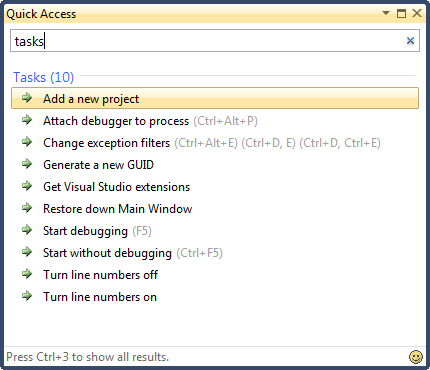
You can look at tasks as “scripts” or “light-weight macros”. Through tasks, Quick Access provides you with the ability to interact with VS in a way that isn’t normally exposed through menu commands. An example would be the task “Turn line numbers on”. Normally, you would have to change this option in the Tools –> Options dialog. With Quick Access, we could implement this task by executing a sequence of VS commands or even interact with the DTE.
The current version of Quick Access ships with several tasks. To see the available tasks, search for “tasks”:
In the next release, we are planning to add support for you to author your own tasks. We will also implement the most commonly requested tasks into the package, so tell us what you’d like to see.
Some Other Stuff You May Be Interested In…
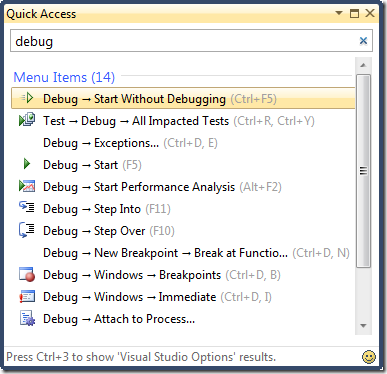
Quick Access uses a model similar to the Windows Start Menu to only show a subset of the matching items when the list fills more than the tool window real-estate. That way, if you type “debug” and really want the Visual Studio Options result, you don’t have to scroll down through 14 menu items. If you want to see all the results, press Ctrl+3 again to show everything. Continue pressing Ctrl+3 to filter on each category.
 |
 |
Let Us Know What You Think
As with all of the Productivity Power Tools features, we want to know what you think. What do you like? What can we make better?
We are also really interested in how you use or would like to use Quick Access. Is it to find a specific options page or something more involved such as executing tasks/macros?
Click the smiley face in the bottom right of the Quick Access window to send us mail.
Thanks,
Weston Hutchins Program Manager – IDE Platform
 Light
Light Dark
Dark
0 comments