
Productivity Power Tools 2012

By popular request, the new version of the Productivity Power Tools has arrived for Visual Studio 2012! These tools are the fruit of a few passionate engineers on the Visual Studio team that love sharing the power of Visual Studio with customers.
The Productivity Power Tools are one of the top gallery extensions for Visual Studio 2010. With your feedback, some of the features made it into Visual Studio 2012 including Quick Find, Solution Explorer (Navigator), Quick Launch, and the new Add Reference dialog.
The new edition enables the rest of the tools for Visual Studio 2012 and adds some new ones. In this post, we’d like to tell you about what is included in this power-packed release, a refresher for those of you that used the 2010 version and an introduction to those of you that haven’t! We’d love to hear what you think about these tools, please send us your feedback on the pack’s Gallery Page.
Previously Available Tools
Many of the tools included in the 2010 version of the Productivity Power Tools are available in this version as well. Here is a summary:
- Enhanced Scrollbar provides a source map of your file in the scroll bar that allow you to easily see interesting artifacts such as edits, breakpoints, bookmarks, errors and warnings and make it easy to navigate between them.
- Fix Mixed Tabs will warn you when you open or save a file that has a mixture of tabs & spaces and offers to fix it for you.
- Automatic Brace Completion will automatically insert the closing code construct when the opening construct is typed for VB & C#.
- Move Line Up/Down Commands easily moves the current line of code (or selected multiple lines) up or down using the Alt+Up Arrow & Alt+Down Arrow keys.
- Organize VB Imports, that can be found in the context menu, allows you to sort the imports logically and remove the ones that aren’t being used.
- Colorized Parameter Help adds syntax highlighting to the contents of the Parameter Help window for C# & VB.
- Column Guides allows you to draw a vertical line in the code editor from the context menu.
- Align Assignments makes your code more readable by aligning assignment statements when you type Ctrl+Alt+].
- Middle Click Scrolling Press down on your mouse scroll wheel and move the mouse to quickly scroll through your document.
- Ctrl + Click Go To Definition makes symbols in your code look like hyperlinks when you hold down the Ctrl key, and will navigate to their definition when you click the hyperlink.
- HTML Copy means copy/cut in the editor is saved in HTML format in your clipboard for rich pasting.
- Control via Tools Options means you are in control of which of these extensions you want on/off.
We received positive feedback on the extended capabilities of the Document Tab Well in the last Power Tools release. Some of the capabilities – such as floating document wells and pinned tabs – made it into Visual Studio 2012 and the rest are available in this new version. We rewrote most of this extension as the area underwent significant changes in Visual Studio 2012. The 2012 pack offers favorites like custom colorized tabs, custom tab locations and a moveable close document button:
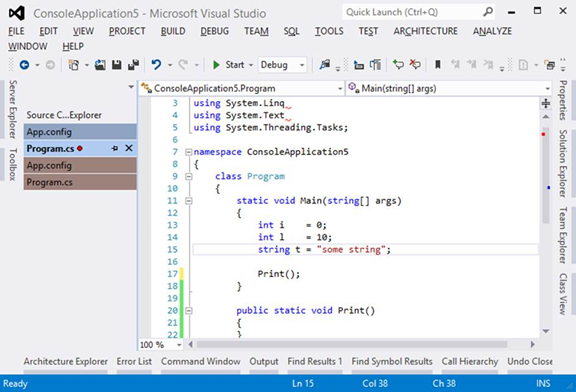
You can control and customize which capabilities you want to use through the Tab Well’s tools/options page.
New in this Release
We have three additions to the Productivity Power Tools family. Color Printing from the editor and Power Commands for Visual Studio both shipped as separate extensions for Visual Studio 2010 and were very popular, so we added them to the pack. The Power Commands extension includes many useful commands, such as Clear All Output Panes, Email a Snippet of Code and Edit Project Files. For the full list, please visit our Gallery Page.
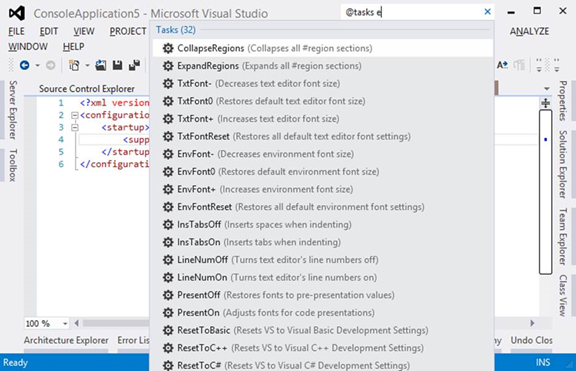
We created a brand new extension, Quick Tasks, that uses Quick Launch to instantly perform common tasks. We identified a number of popular tasks in Visual Studio, such as collapsing and expanding regions, toggling line numbers and changing font size and made them available in the Quick Launch window when typing “@tasks“ as a prefix. The drop down list will show all the available tasks, and typing any letters in the task name will further filter the list for quicker location of the desired task. Here’s a quick screenshot:
Thank you again for the great feedback you’ve provided so far on Productivity Power Tools. We hope you’ll love this new release. Don’t forget to leave your feedback and comments below!
Enjoy!
Thanks,
Visual Studio IDE Teams
 Light
Light Dark
Dark
0 comments