Welcome to MSDN Blogs Sign in | Join | Help

Attunity connectors for Oracle and Teradata are now available

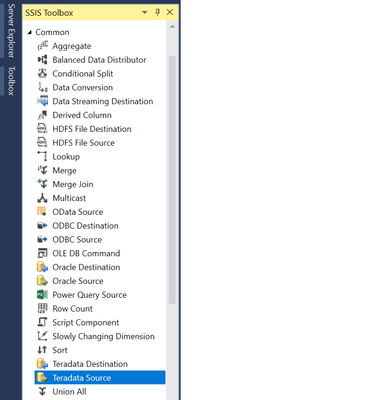
The high speed connectors for Oracle and Teradata are now available for download.

  Supported versions Platforms
Oracle 9.2.0.4 or higher x86, x64, ia64
Teradata 2R6.0, 2R6.1, 2R6.2
and 12.0
x86, x64

Attunity has done a great job putting these together, and from what I’ve seen, the performance is really impressive. Be sure to check them out!

Posted by mmasson | 1 Comments
Filed under:

Presenting at the Microsoft BI Conference

On Monday (October 6th) I’ll be doing a chalk talk presentation at the MS BI Conference. The topic is Advanced Scenarios with the Lookup Transform. Here is the abstract:

Performing lookups is one of the most common operations in the ETL process, and doing them incorrectly can severely affect the performance of your data load. In this talk you’ll learn best practices and design patterns for using the lookup component in SQL Server 2008 Integration Services, and how to take advantage of the new lookup features. If you’ve ever wondered about the differences between full and partial caches, the advantages of cascading lookups, and how to do ranged lookups, you won’t want to miss this talk.

I’ll also be hanging out at the SSIS / SQL BI booths throughout the day. Come by and say hello!

Posted by mmasson | 2 Comments
Filed under: ,

SQL Server Data Services connectors now on Codeplex

When I was visiting the SSIS development team in Shanghai a couple of months ago, we started working on a side project to create Source and Destination components for SQL Server Data Services (SSDS). We developed them as samples, and I was surprised at how popular they became internally. David Robinson beat me to the announcement, but after months of delay, I’ve finally been able to get it all together and publish the project on Codeplex.

If you’re interested in the source code, I particularly like the way we got around a limitation in the Destination. SSDS currently supports a “batch” query mode for retrieving multiple entities (“rows” in relational terms) – you can pull back up to 500 entities in a single query -but there is no batch functionality for inserts. That means that each entity is inserted with a single query. To increase performance we do many inserts in parallel using multiple threads. You have to tweak your .NET HTTP connection settings (these adapters use the SOAP interface that SSDS provides) to increase the maximum number of concurrent connections to a server, but it ended up giving us a 10-50x performance increase. Definitely something to keep in mind if you are creating your own web service based data flow component.

I thought I’d include some additional instructions and images here here that didn’t fit in the project readme.

Install

Set the path the DTS folder of your SQL Server installation. This should be %ProgramFiles%\Microsoft SQL Server\100\DTS.

On 64bit installs, place the files under the “Program Files (x86)” directory.

clip_image002

The installer will place the following files:

PipelineComponents\Microsoft.Samples.DataServices.Destination.dll

PipelineComponents\Microsoft.Samples.DataServices.Source.dll

Connections\Microsoft.Samples.DataServices.ConnectionManager.dll

Microsoft.Samples.DataServices.Connectivity.dll (GAC only)

All of the DLLs also go in the GAC.

Creating a connection manager

Right click on the Connection Managers window

Select New Connection…

clip_image004

Choose “SSDS”

Enter connection information

· Authority

· User Name

· Password

clip_image006

Note: You only need to enter your Authority ID and not the full URL to the service.

Test Connection to see if it worked. Click OK when done.

Setting up the Data Flow

Add a new Data Flow Task

Right click on Toolbox, chose “Choose Items…”

Check the boxes for SSDS Destination and SSDS Source

clip_image008

Source

The source component currently doesn’t have a custom UI. All editing is done through the common Advanced Editor UI.

1. Drag an SSDS Source component from the toolbox onto the Data Flow canvas

2. Double click the source component

3. Click “Yes” asking if you want the component to fix itself. The advanced editor will display.

4. Select the Connection Manager you created in the previous step.

clip_image010

5. On the Component Properties tab, set the following properties:


Property Description
ContainerID Must be set to a valid container ID within your Authority
EntityKind Optional. Use this to limit the entities retrieved to a specific kind
PreviewCount Used to limit the number of rows pulled back to determine the column metadata.

Note: the current functionality is currently limited. We will always pull back up to 500 entities, but will only look at “PreviewCount” number of entities to determine metadata.


clip_image012

6. Once the ContainerID is set, click the Column Mappings tab to select which columns you want to use, and set the output column names.

clip_image014

Destination

The destination has a custom UI, but it currently doesn’t allow you to specify column mappings. This has to be done separately on the Advanced UI.

1. Drag an SSDS Destination object from the Toolbox onto the design surface

2. Connect the pipeline flow to the destination

3. Double click the destination to bring up the custom UI

4. Set the SSDS connection manager from the drop down, the Container ID you want to store the results in, and the Entity Kind value. These fields are all required. To generate a new ID for each entity being inserted (as a GUID), select the “Create New ID” option. To use a value from a column in the pipeline, select “Use Existing ID” and type in the column name.

clip_image016

5. Click the “Columns” tab to select the columns from the data flow you want to send to SSDS. Each row becomes a new entity. Each column becomes a property.

clip_image018

Uninstall

Remove the “Data Services Connectors for SSIS” entry from Add/Remove Program Files

Posted by mmasson | 1 Comments
Filed under: ,

Enum value for Lookup’s NoMatchBehavior property

The lookup transform has a new property in SQL 2008 which controls how to handle rows with no matches – NoMatchBehavior. It has two values - “Treat rows with no matching entries as errors” and “Send rows with no matching entries to the no match output”.

From the BOL entry:

When the property is set to Treat rows with no matching entries as errors, the rows without matching entries are treated as errors. You can specify what should happen when this type of error occurs by using the Error Output page of the Lookup Transformation Editor dialog box.

When the property is set to Send rows with no matching entries to the no match output, the rows are not treaded as errors.

In the properties window, this shows up as a drop down list. However, it looks like we forgot to document the actual enumeration values you would use if you are setting the property programmatically.

The enum looks like this:

public enum NoMatchPropertyEnum : int
{
    TreatAsError = 0,
    SendToNoMatchOutput = 1
}

This info should appear in the BOL docs the next time they are updated.

Posted by mmasson | 0 Comments
Filed under:

Accessing OLEDB Connection Managers in a Script

Accessing ADO.Net Connection Managers from an SSIS script task / script component is pretty easy – you just need to cast the object returned from AcquireConnection() to the appropriate class (i.e. SqlConnection if you’re using SQL Native Client).

SqlConnection conn = (SqlConnection)Dts.Connections["adonet"].AcquireConnection(null);

If you can’t use ADO.Net for some reason, and are using OLEDB connection managers, it’s a little trickier. Since the AcquireConnection() method of the OLEDB connection manager returns a native COM object, I didn’t think there was a way to make this work, but today someone showed me how to do it!

By casting the Connection Manager’s InnerObject to the IDTSConnectionManagerDatabaseParameters100 interface (IDTSxxx90 in 2005), you can call the GetConnectionForSchema() method to return an OleDbConnection object.

2008 (C#):

ConnectionManager cm = Dts.Connections["oledb"];
IDTSConnectionManagerDatabaseParameters100 cmParams = cm.InnerObject as IDTSConnectionManagerDatabaseParameters100;
OleDbConnection conn = cmParams.GetConnectionForSchema() as OleDbConnection;

2005 (VB):

Dim cm As ConnectionManager
Dim cmParam As Wrapper.IDTSConnectionManagerDatabaseParameters90
Dim conn As OleDb.OleDbConnection

cm = Dts.Connections("oledb")
cmParam = CType(cm.InnerObject, Wrapper.IDTSConnectionManagerDatabaseParameters90)
conn = CType(cmParam.GetConnectionForSchema(), OleDb.OleDbConnection)

Note, you’ll need to add a reference to the Microsoft.SqlServer.DTSRuntimeWrap assembly to get the IDTSConnectionManagerDatabaseParameters100 interface. If you’re doing this in a script task, you’ll need to prefix the Microsoft.SqlServer.Dts.Runtime.Wrapper namespace (or use fully qualified names) so that it doesn’t conflict with the namespace for the VSTA proxy classes.

Keep in mind that there are a couple of limitations with this approach:

  1. You won’t be able to enlist in the current transaction
  2. This connection doesn’t honor the “retain same connection” setting

ADO.Net is still the recommended connection manager type for scripts, but I found this to be a nice work around.

Posted by mmasson | 1 Comments

Competitive Comparison of SQL Server 2008 Integration Services

Did you know about this white paper comparing SSIS to IBM Information Server (DataStage), Informatica PowerCenter, Oracle Warehouse Builder, and Oracle Data Integrator? I had heard rumors of its existence, but I hadn’t actually seen the links for it until now.

I saw a lot of good points in there, but looking at the chart on page 2 (which I’ve included below), it seems to me that it may have a slight bias towards SSIS…

image 

What do you think? Are white papers like this an effective way to get our message out there?

EDIT: The spell checker in Windows Live Writer suggests “overeater” for “PowerCenter” … I found that amusing.

Posted by mmasson | 2 Comments
Filed under:

New SSIS community samples

Some new samples have been added to the SSIS community samples project on codeplex.

Delimited Flat File Reader

This data flow source component is capable of parsing delimited flat files, including files with rows that are missing columns.

Package Generation Sample

This standalone executable shows how to use the SSIS object model to do schema-based dynamic package generation. It works with SQL Server, Excel and Flat Files as source / destinations.

Hello World Task Sample

This is the sample that I previously blogged about. It’s a simple Hello World type task that shows how to extend the base task UI classes.

SharePoint List Adapters

This sample contains data flow source and destination components that demonstrate how to get data in and out of SharePoint lists. I’ve seen a lot of requests for this one!

Note, all of the samples are available as binaries, and as source. We’re going to continue adding to the list, so if you have any ideas of what you’d like to see, feel free to send them to me.

Posted by mmasson | 1 Comments
Filed under:

SQL Server 2008 RTM is Live

The RTM version of SQL Server 2008 is now available for MSDN and Technet subscribers.

Hurray!

image001

Posted by mmasson | 2 Comments
Filed under:

SSWUG Business Intelligence Virtual Conference

I’ve been invited to speak at the SSWUG BI Virtual Conference in September. Like John Welch mentioned in his blog, the current speaker lineup is very impressive. I’m honored (and a little intimidated) to be on the presenters list! I’ll be flying out to Tucson in early September to record three SSIS related sessions:

  • What’s new in SSIS in SQL Server 2008
  • Beyond Scripting – Developing reusable extensions for SSIS
  • Advanced lookup scenarios in Integration Services with SQL Server 2008

The conference will take place online September 24th – 26th. The session list hasn’t been posted yet, but judging by the list of speakers, I’m sure it will be interesting.

Posted by mmasson | 0 Comments

Regular Expression Flat File Source

The RegEx flat file source is one of the new community samples for SQL Server 2008 we’ve published to Codeplex. It uses regular expressions to extract values from a text file. It works similar to the flat file source, except that it’s not limited to CSV-type files (I saw a demo where the developer who created the sample used it to extract class names from a source files).

Note, when I ran the installer for the sample, it didn’t put the RegExFlatFileSource.dll file under 100\DTS\PipelineComponents. It only put the source down. We’ll either update the installer, or update the docs on the site. To get the component, I opened the project in Visual Studio, and ran a build. The project has a post build step which places the DLL under the PipelineComponents directory, and runs gacutil.exe to place it in the GAC.

Once the sample is installed, you can add it to your toolbar in Visual Studio.

image 

We’ll start off with a simple flat file example. My data looks like this:

value 1,1,2001-01-01
value 2,2,2002-02-02
value 3,3,2003-03-03
value 4,4,2004-04-04
value 5,5,2005-05-05
value 6,6,2006-06-06
value 7,7,2007-07-07
value 8,8,2008-08-08

Columns are defined using groups. If I want the component to behave like a regular CSV parser, I can use a regular expression like this:

(\w+),(\w+),(\w+)

image

If I click on the Column Mappings tab, I can see four columns have been defined.

image

Like with regular expression matches, the first match (column 0) is the entire pattern (which is the whole line in this case). The next three columns are the groups I defined in my regex.

I can also provide default names for my columns by naming the groups. This regex is a little more specific, and adds names to the groups using the ?<name> syntax supported by .NET.


(?<text>.*?),(?<number>\d),(?<date>\d{4}-\d{2}-\d{2})

If I look back at the Column Mappings tab, I can see the columns now have names.

image 

You’ll notice that the component provides two outputs – one for rows that match the pattern, and one for rows that don’t match. The non-matching row output will always have a single string column which contains the entire line.

image

Adding a data viewer to the Match output, I can see all of the column matches it made:

image

I really like this sample because it opens up a lot of data sources, like log files, that used to require custom parsing using a script component. I think it has a lot of potential!

Posted by mmasson | 0 Comments
Filed under:

First two community samples for 2008 now on Codeplex

The Integration Services Community Samples project is now active on Codeplex. These samples are being created by the SSIS product team to supplement the content in books online, and the Product Samples for 2008. They will (hopefully) provide useful functionality that you can then take an customize for your ETL solutions.

The first two samples are pipeline components. We have an XML Destination, which takes one or more input streams and outputs XML documents, and a RegEx Flat File Source, which allows you to parse flat files using regular expressions.

From the releases page:

XML Destination

This sample includes source and binary for a simple XML Destination pipeline component. Use this sample to learn more about how to:

  • Create custom data flow destination components for use with SSIS
  • Build component user interfaces
  • Support multiple inputs on a single component

Regular Expression Flat File Source

This sample includes source and binary for a regular expression based flat file parsing source. Use this sample to learn more about how to:

  • Create custom data flow sources components for use with SSIS
  • Support multiple outputs from a single component
  • Define output columns
  • Validate metadata

These components are pretty easy to use, but I’ll follow up with a couple of posts (with screen shots!!@) that show how to use them. 

Posted by mmasson | 0 Comments
Filed under: ,

Creating a custom task with a default UI

The Developing a User Interface for a Custom Task entry in Books Online describes how to build your UI from scratch, but there is an easier way to create a UI that has the same look and feel as the stock tasks that ship with SSIS.

The Microsoft.DataTransformationServices.Controls assembly exposes a base class that most of the stock SSIS tasks inherit from – DTSBaseTaskUI. With minimal coding, you too can have a beautiful Task UI (that looks something like this:)

image

After creating your task, you can link it to a UI assembly using the UITypeName parameter of the DtsTask property. The recommended practice is to create a separate assembly for your UI to separate the UI code from the code that gets loaded at runtime, but this is optional. It can all work in the same assembly as well.

We’re going to create three classes for our “HelloWorldTask”

  1. HelloWorldTaskUI – Implements IDtsTaskUI
  2. HelloWorldTaskMainWnd – Extends DTSBaseTaskUI
  3. GeneralView – Implements IDTSTaskUIView

HelloWorldTaskUI is the entry point for the UI functionality, and is responsible for initializing and displaying your UI.

Extending DTSBaseTaskUI in HelloWorldTaskMainWnd gives you the form in the screen shot above. Each page of properties you want to display is a separate class that implements IDTSTaskUIView. You get the “Expressions” page for free.

Let’s walk through what you need to do.

First you’ll need to add some additional references:

  • Microsoft.DataTransformationServices.Controls
  • Microsoft.SqlServer.Dts.Design
  • System.Drawing
  • System.Windows.Forms

Note, that Microsoft.DataTransformationServices.Controls.dll is in the GAC, but doesn’t show up in the “.NET” tab of the “Add Reference…” dialog.

Add new User Control – GeneralView.cs. On the designer, add a property grid. To keep the same look and feel as other SSIS tasks, the InitializeComponents() should look something like this:

// 
// propertyGrid
// 
this.propertyGrid.Dock = System.Windows.Forms.DockStyle.Fill;
this.propertyGrid.Location = new System.Drawing.Point(0, 0);
this.propertyGrid.Name = "propertyGrid";
this.propertyGrid.PropertySort = System.Windows.Forms.PropertySort.Categorized;
this.propertyGrid.Size = new System.Drawing.Size(150, 150);
this.propertyGrid.TabIndex = 0;
this.propertyGrid.ToolbarVisible = false;

In your GeneralView class, define an internal class which contains all of the properties you’d like to display in the UI – ie. GeneralViewNode

internal class GeneralViewNode
{
    // Properties variables
    private string displayText = string.Empty;
    private string name = string.Empty;
    private string description = string.Empty;

    internal TaskHost taskHost = null;
    internal IDtsConnectionService connectionService = null;

    internal GeneralViewNode(TaskHost taskHost, IDtsConnectionService connectionService)
    {
        this.taskHost = taskHost;
        this.connectionService = connectionService;

        // Extract common values from the Task Host
        name = taskHost.Name;
        description = taskHost.Description;

        // Extract values from the task object
        HelloWorldTask.HelloWorldTask task = taskHost.InnerObject as HelloWorldTask.HelloWorldTask;
        if (task == null)
        {
            string msg = string.Format("Type mismatch for taskHost inner object.");
            throw new ArgumentException(msg);
        }

        displayText = task.DisplayText;
    }

    #region Properties

    [Category("General"), Description("Task name")]
    public string Name
    {
        get
        {
            return name;
        }
        set
        {
            string v = value.Trim();
            if (string.IsNullOrEmpty(v))
            {
                throw new ApplicationException("Task name cannot be empty");
            }
            name = v;
        }
    }

    [Category("General"), Description("Task description")]
    public string Description
    {
        get
        {
            return description;
        }
        set
        {
            description = value.Trim();
        }
    }

    [Category("General"), Description("Text to display")]
    public string DisplayText
    {
        get
        {
            return displayText;
        }
        set
        {
            displayText = value;
        }
    }

    #endregion
}

As you can see, we have the single property for the task (DisplayText), and two of the common Task properties – Name, and Description.

Create a member variable for this node class:

private GeneralViewNode generalNode;
internal GeneralViewNode GeneralNode
{
    get { return generalNode; }
}

Implement the IDTSTaskUIView interface. These methods are called when the UI is opened, and when the UI clicks OK.

#region IDTSTaskUIView Members

public void OnCommit(object taskHost)
{
    TaskHost host = taskHost as TaskHost;
    if (host == null)
        throw new ArgumentException("Arugment is not a TaskHost.", "taskHost");

    HelloWorldTask.HelloWorldTask task = host.InnerObject as HelloWorldTask.HelloWorldTask;
    if (task == null)
    {
        throw new ArgumentException("Arugment is not a HelloWorldTask.", "taskHost");
    }

    host.Name = generalNode.Name;
    host.Description = generalNode.Description;

    // Task properties
    task.DisplayText = generalNode.DisplayText;
}

public void OnInitialize(IDTSTaskUIHost treeHost, TreeNode viewNode, object taskHost, object connections)
{
    this.generalNode = new GeneralViewNode(taskHost as TaskHost, connections as IDtsConnectionService);
    this.propertyGrid.SelectedObject = generalNode;
}

public void OnLoseSelection(ref bool bCanLeaveView, ref string reason)
{
}

public void OnSelection()
{
}

public void OnValidate(ref bool bViewIsValid, ref string reason)
{
}

#endregion

Add new Windows Form – HelloWorldTaskMainWnd.cs. Change the inheritance from Form to DTSBaseTaskUI.

Note, after inheriting from DTSBaseTaskUI, you’ll get an error when trying to open the code in Design view in Visual Studio 2008. This is caused by DTSBaseTaskUI not having a default constructor. We’re aware of the issue, and will hopefully be able to resolve it in a cumulative update. It won’t cause issues at runtime.

Add some members for the UI properties we’ll use to initialize DTSBaseTaskUI.

private const string Title = "Hello World Task";
private const string Description = "Displays a message box";
private static Icon TaskIcon = new Icon(typeof(HelloWorldTask), "Task.ico");

Add a member for GeneralView class.

private GeneralView generalView;
public GeneralView GeneralView
{
    get { return generalView; }
}

Add a constructor.

public HelloWorldTaskUIMainWnd(TaskHost taskHost, object connections) :
    base(Title, TaskIcon, Description, taskHost, connections)
{
    InitializeComponent();
    
    // Setup our views
    generalView = new GeneralView();
    this.DTSTaskUIHost.FastLoad = false;
    this.DTSTaskUIHost.AddView("General", generalView, null);
    this.DTSTaskUIHost.FastLoad = true;
}

Note, the first parameter you use for AddView() is the text that gets displayed on the left of the main window.

Finally, add a new class that implements IDtsTaskUI to control the launching of your new window.

public class HelloWorldTaskUI : IDtsTaskUI
{
    private TaskHost taskHost = null;
    private IDtsConnectionService connectionService = null;

    #region IDtsTaskUI Members

    public void Delete(IWin32Window parentWindow)
    {
    }

    public ContainerControl GetView()
    {
        return new HelloWorldTaskUIMainWnd(taskHost, connectionService);
    }

    public void Initialize(TaskHost taskHost, IServiceProvider serviceProvider)
    {
        this.taskHost = taskHost;
        this.connectionService = serviceProvider.GetService(typeof(IDtsConnectionService)) as IDtsConnectionService;
    }

    public void New(IWin32Window parentWindow)
    {
    }

    #endregion
}

And there you go! Be sure to add the task UI assembly to the GAC before trying it out in Visual Studio.

I should mention that Kirk’s book has a chapter on creating custom tasks that gives a lot more details than I have here. If you’re interested in extending the SSIS platform, Kirk’s book (or the “SSIS White Book” as I like to call it) is an invaluable resource.

I’ve uploaded the source for the highly useful Hello World Task (and its UI) to my Sky Drive public folder. I developed this using SQL Server 2008, but it should also work the same way in 2005.

I’ll also be turning this into a community sample to be published on Codeplex (along with our other new development samples) sometime soon.

Enjoy!

Posted by mmasson | 3 Comments
Filed under: ,

Fuzzy Lookup similarity scores

I recently received this question about Fuzzy Lookup behavior (paraphrased):

We are seeing something very strange within the Fuzzy Lookup component. When you have different ref tables, both containing the same value, but one having a lot more data, you get different similarity scores. So if the name “Jo Bloggs” comes in and you compare it with a ref table that only has “Jo Bloggs”, and a ref table that has two million other names as well, the scores will be different.

I’m not an expert with the Fuzzy components, but this didn’t sound all that odd to me. Because the component will look at the entire reference set, it makes sense that that could affect the end similarity score. I asked our expert in Microsoft Research, Kris Ganjam, for a definitive answer, and this is what he said:

Fuzzy Lookup gives weight to each word based upon how frequently that word occurs in the reference table. Frequent words are given lower weight. This allows "Microsoft Corporation" to be close to "Microsoft Corp" and far from "Boeing Corporation". It uses Inverse Document Frequency (IDF) weighting which is standard in information retrieval and which lies at the heart of most search engines.

Neat!

Posted by mmasson | 0 Comments
Filed under:

SSIS and SAP

Douglas already beat me to it, but I figured it was important enough to repeat incase you missed it the first time around.

I still don't fully understand why SAP is so popular. It's probably because I don't know enough about it, but it seems the more I get to know, the less appealing it is. Maybe there is a sudden "a ha!" moment when your SAP knowledge reaches a critical mass. Regardless, it was the biggest topic of conversation when I was helping out at TechReady last February, which is why I'm glad Microsoft has created an SAP Technical Guidance site.

The site has a lot of good content on making the most of your SAP ERP installation with SSIS and Office, as well as other Microsoft technologies. There are PDF white papers, power point slide decks, and also some video presentations.

I'm sure you can expect some content about using the new SAP BI connectors appearing when they are released later this year.

It should be noted that although the SAP R/3 connector comes through the "BizTalk Adapter Pack", you don't actually need a BizTalk installation to make use of them.

Posted by mmasson | 0 Comments
Filed under:

Reporting on execution logs using Reporting Services

Microsoft published a set of canned reports for RS a while back. The pack includes some reports for Integration Services that give you execution results and statistics for your packages (if they are using SQL Server logging). The reports are very handy, and provide a good starting point if you want to create your own custom reports.

Here are some screen shots of runs I did recently (those of you familiar with Project REAL might recognize the package names).

Summary

Summary report


Analysis

Analysis


Log Details

Log details


I recently tried the reports out with SQL 2008, and was happy to see that everything still worked – with one additional step. Since the SSIS logging table name has been changed from sysdtslog90 (2005) to sysssislog (2008), you’ll need to either update the reports to use the new name, or create a View which maps to the new table.

CREATE VIEW [dbo].[sysdtslog90]
AS
    SELECT [id]
          ,[event]
          ,[computer]
          ,[operator]
          ,[source]
          ,[sourceid]
          ,[executionid]
          ,[starttime]
          ,[endtime]
          ,[datacode]
          ,[databytes]
          ,[message]
      FROM [dbo].[sysssislog]
Note, if you’re upgrading from 2005 to 2008, this view is created for you automatically in MSDB. You’ll still need to create it yourself if you’re logging to a separate database, however.
Posted by mmasson | 0 Comments
Filed under: ,
More Posts Next page »
 
Page view tracker