Welcome to MSDN Blogs Sign in | Join | Help

How to create an installer for your custom extension

The simplest way to create an installer for your custom SSIS extension is by using a Setup Project in Visual Studio. Here are the steps we take when we’re creating installers for our Codeplex projects.

1. In Visual Studio, create a new Setup Project – File -> New Project…

2. Under Other Project Types | Setup and Deployment, select Setup Project

clip_image002

3. Delete User’s Desktop and User’s Project Menus folders from File System (Setup) screen

clip_image004

4. On Application Folder, set the DefaultLocation property to the root DTS directory:

Ex. [ProgramFilesFolder]Microsoft SQL Server\100\DTS

5. Right click on the Application Folder and add the sub folder you need to put your sample in (ie. Tasks, PipelineComponents, Connections)

6. Right click on the new folder, and add “Project Output” to the folder to place binaries from your sample.

clip_image006

clip_image008

7. If you need to place files in the GAC, right click on File System on Target Machine -> Add Special Folder -> Global Assembly Cache Folder

clip_image010

It will now show up as an additional folder, and you can add project output to it.

8. Exclude all dependencies by highlighting all of the files under the Detected Dependencies Folder, and selecting Exclude

clip_image012

9. If you’d like to add a readme .rtf file, place it in the Application Folder.

10. You’ll need to edit the UI pages to display a readme after the install. Right click on the Setup project, View -> User Interface to bring up the UI page.

clip_image014

11. For both the Install and Administrative Install, right click on End and select Add Dialog. Select the Read Me dialog. Drag the “Read Me” page to be above the “Finished” page.

clip_image016

12. Set the ReadmeFile property to your readme file.

clip_image018

Published Thursday, December 04, 2008 5:16 PM by mmasson
Filed under:

Comments

# re: How to create an installer for your custom extension

Hi Matt,

Thanks for the primer - it will help tons.

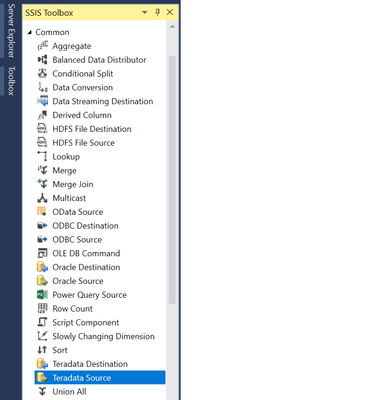
One more favor to ask though - is there any way you could walk over to the Visual Studio Extensibility guys and have them help with the "last mile" of making an installer?  How can an installer place the component into the BIDS toolbox?

I've tried myself by looking at archives of Chetan Chudasama's blog, and a derivative of that work on CodePlex (the Visual Studio Toolbox Manager) that is so tantalizingly close to working... but doesn't.

Thanks!

Wednesday, December 10, 2008 2:05 PM by toddmcdermid

# re: How to create an installer for your custom extension

If you'd like to know how to add an SSIS custom Task or Component to the VS toolbox with an installer (so you don't have to Add Items), vote for this Connect issue: https://connect.microsoft.com/SQLServer/feedback/ViewFeedback.aspx?FeedbackID=407817

Monday, February 02, 2009 1:38 PM by toddmcdermid

# re: How to create an installer for your custom extension

Matt,

Thanks, this was extremely helpful.  However, I would suggest one change.  As per the MSDN's advice on deploying custom SSIS objects(http://msdn.microsoft.com/en-us/library/ms403356.aspx#deploying), we should check the registry for the proper installation folder.  With tips from KB article 827026 (http://support.microsoft.com/kb/827026), I was able to use a Launch Condition to search the registry for the key I needed (HKEY_LOCAL_MACHINE\SOFTWARE\Microsoft\MSDTS\Setup\DtsPath for SQL Server 2005) and store it in a variable I named DTS_PATH.  Then, in my ApplicationFolder's DefaultLocation property, I put [DTS_PATH]\Tasks (since I was installing a custom task).  Now my installer will work even if SQL Server isn't installed in the default location.

Thanks again for the post - it was a huge help!

Thursday, February 05, 2009 10:17 AM by tfreedman

# re: How to create an installer for your custom extension

This is a great point - using the registry keys is definitely a good idea. In 2008, the key was moved from the MSDTS hive to the main Microsoft SQL Server path -

HKLM\SOFTWARE\Microsoft\Microsoft SQL Server\100\SSIS\Setup\DTSPath

When I have time, I'll update the blog post with this information, as well as any tips about controlling the Toolbox I can dig up.

Friday, February 06, 2009 1:46 PM by mmasson
Anonymous comments are disabled
 
Page view tracker